> For the complete documentation index, see [llms.txt](https://themedocs.zenit.design/llms.txt). Markdown versions of documentation pages are available by appending `.md` to page URLs; this page is available as [Markdown](https://themedocs.zenit.design/en/settings/search.md).
# Search
{% hint style="info" %}
Unlike the **styling** configuration (theme configuration), the settings of a theme are always stored in the parent theme. A child theme does not have its own area with settings.
[**Where can I find the theme settings?**](/en/master.md#step-5-settings-plugin-app-configuration)
{% endhint %}
## Category filter entry point
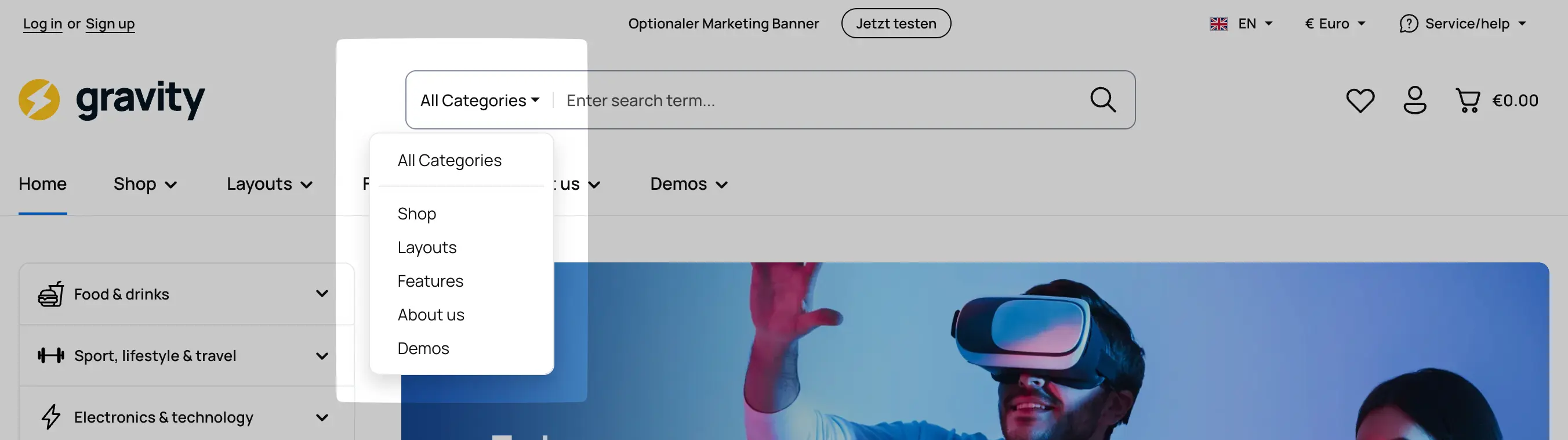
Category filter
{% hint style="info" %}
The category filter is enabled in the theme settings. You can find this option under Theme settings > Header > [Search](/en/styling/header/search.md). Enable the Category filter option there.
{% endhint %}
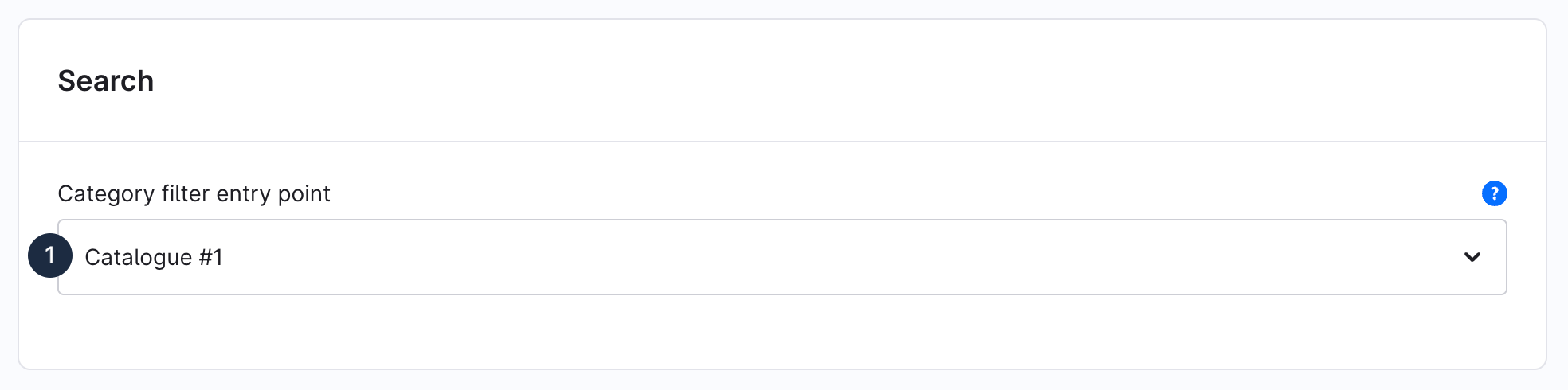
You can choose an entry point for the category filter in search to ensure the filter structure matches your shop setup. Not every shop uses top-level categories to represent the assortment—some start their structure on a level like “Products” or use a different entry category. By defining a **Category filter entry point (1)**, you control from which category level search categories are considered for the filter.