---
description: >-
In Shopware, there are three different product layouts that you can set for
each category.
---
# Product layout
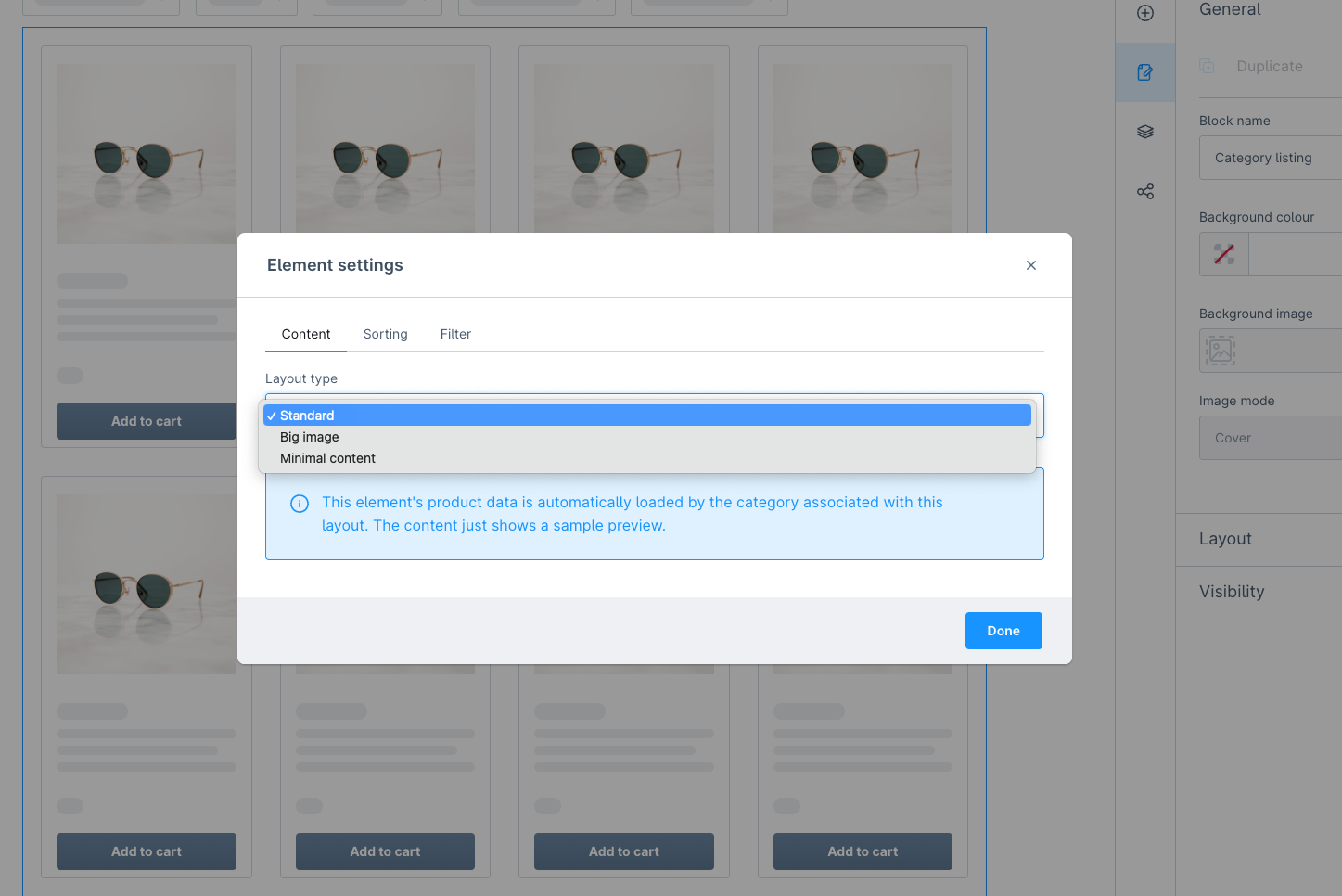
You can choose from three layout types for the presentation of your products in the storefront. The layouts `Standard`, `Big image` and `Minimal content` are available.
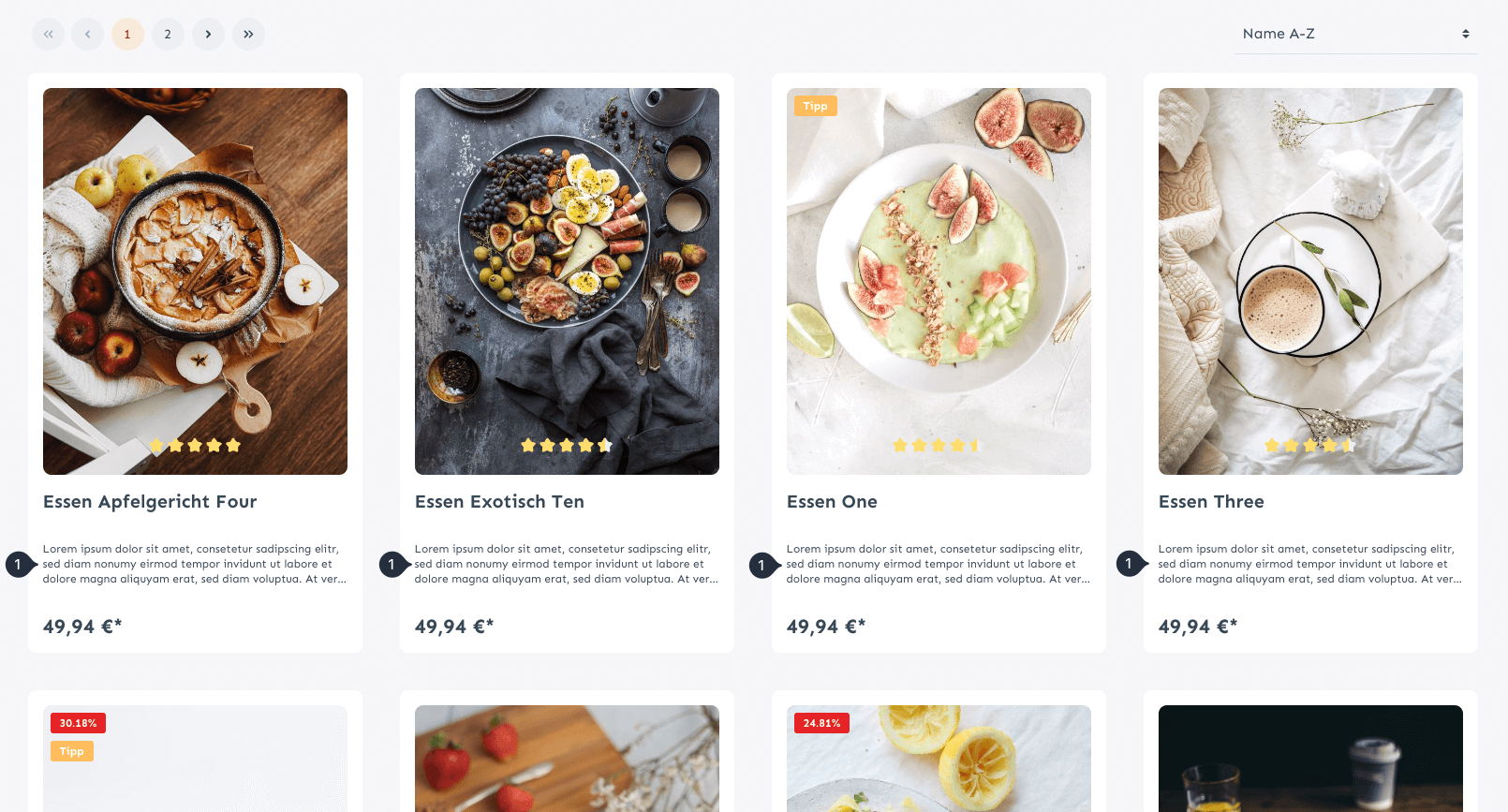
Basically, Shopware initially uses the Standard layout type. This layout type represents a **product description (1)** in the product layout. The layout types `Big image` and `Minimal content` do not represent a description in the listing and are a bit more compact.
Layout-Type Standard
## Set product layout type globally
In the listing page layouts of the shopping experiences you can globally set the layout of your products in the category listing element.
{% hint style="info" %}
You may need to make a copy of the default category layouts as these are not editable.
{% endhint %}
## Set product layout type in category
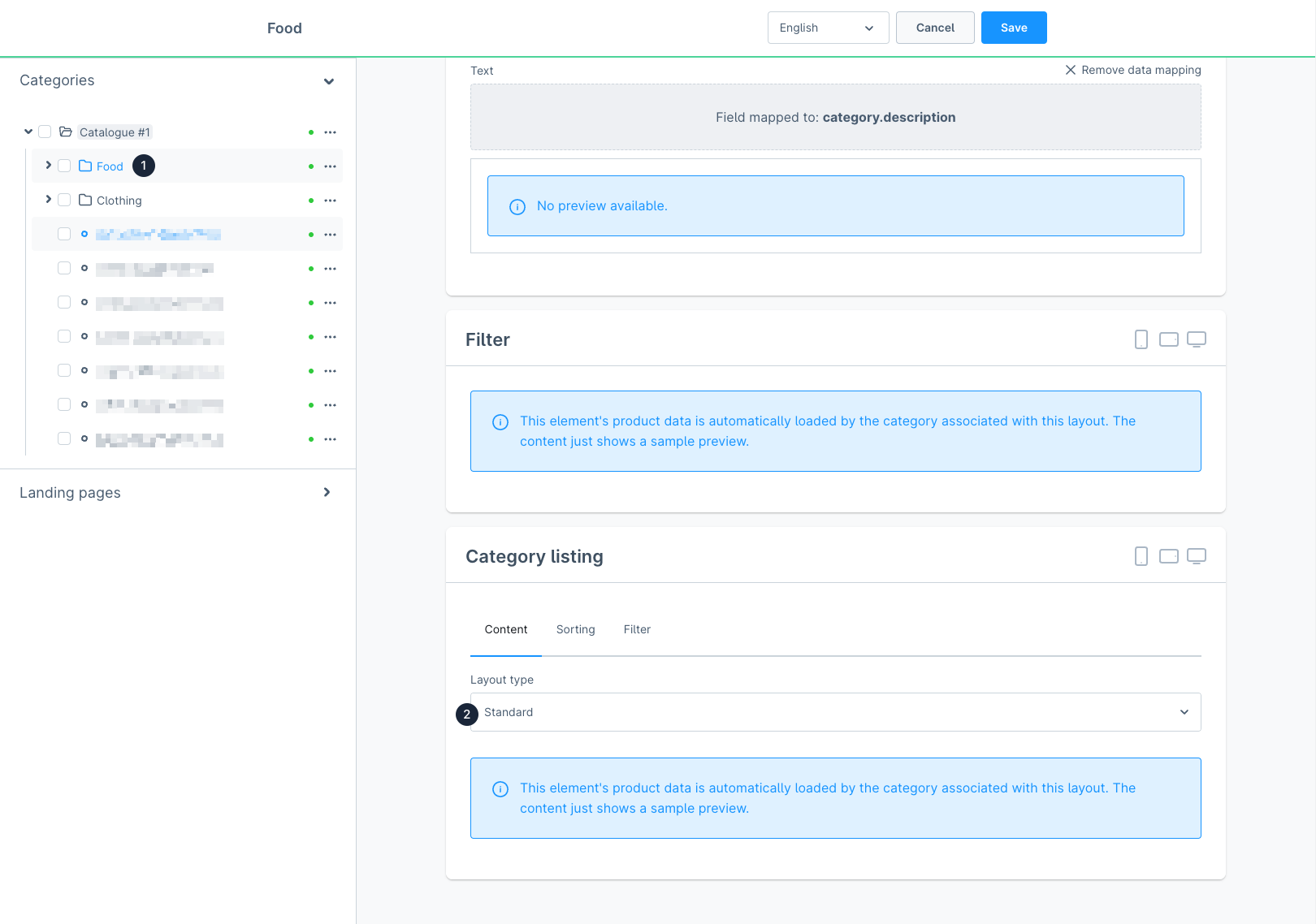
In contrast to the global setting, you can also overwrite the globally set layout type in each **category (1)** in the tab "layout" in the category listing section in the **Layout type (2)** option.
{% embed url="https://youtu.be/60rg5naRKqI?t=695" %}
from minute 11:35
{% endembed %}