> For the complete documentation index, see [llms.txt](https://themedocs.zenit.design/llms.txt). Markdown versions of documentation pages are available by appending `.md` to page URLs; this page is available as [Markdown](https://themedocs.zenit.design/en/content/details-page/product-header.md).
# Product header
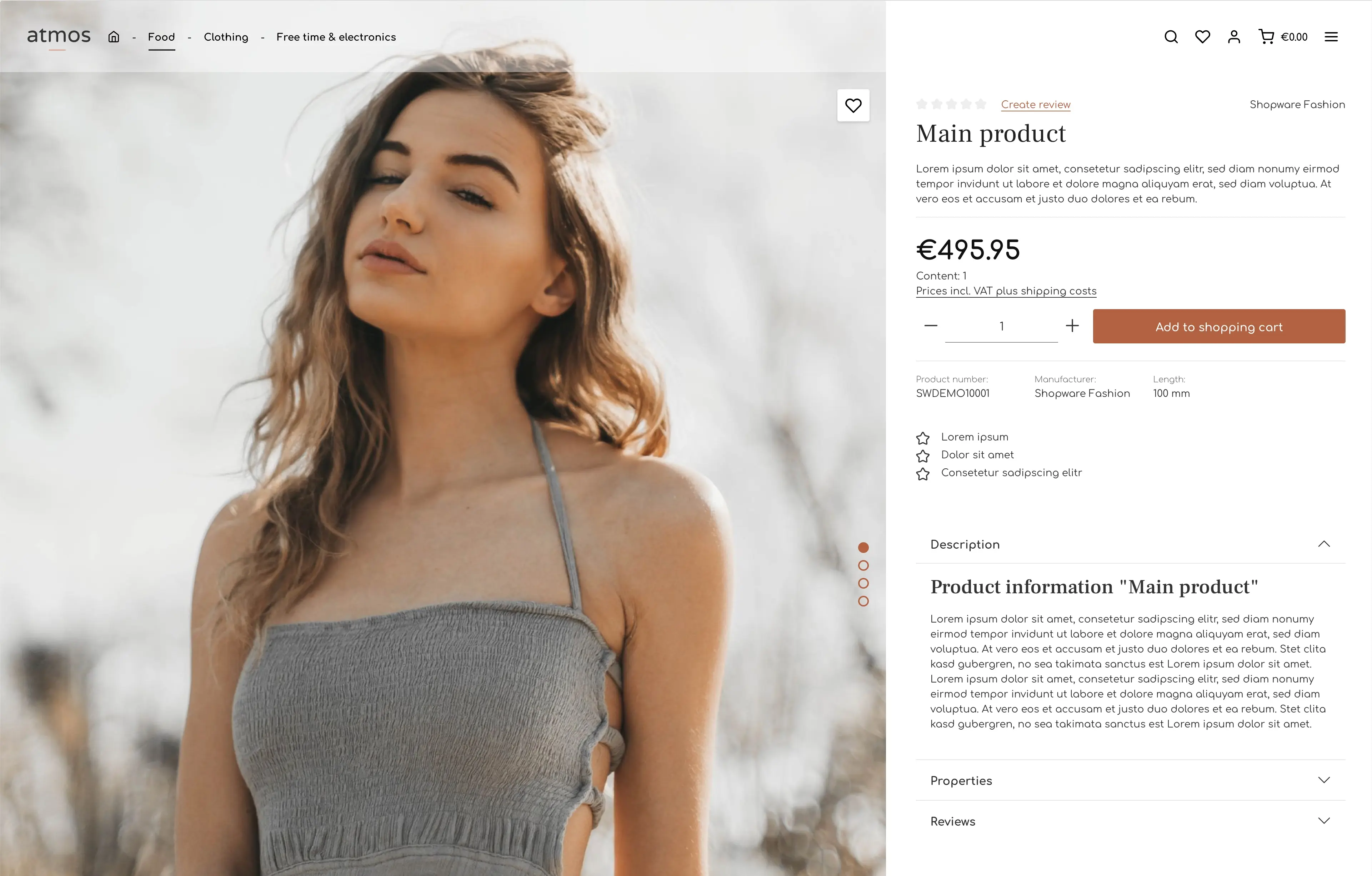
The effect looks best when the header overlays elements of the shopping experience. This can be, for example, simple images or even the gallery slider.
Example:

## Configuration per product
If you want to apply this effect to control each product individually, we have implemented custom fields in the product - this setting is located in the custom fields of your products: Catalogues > Products > \[select product] > Tab: Specifications > Custom fields > Tab: Header
![Catalogues > Products > \[select product\] > Tab: Specifications > Custom fields > Tab: Header](https://2915610672-files.gitbook.io/~/files/v0/b/gitbook-x-prod.appspot.com/o/spaces%2F4i6VN0FeNAgRFLwVM2Cr%2Fuploads%2Fr7KiSEcIpwtNXKNOY2bn%2Fdocs-en-config-custom-fields-product-header.webp?alt=media\&token=d4a3d3d6-2e00-45cf-a5a1-6a15b6546267)
### Overlay header
* **Header overlay (1)** \[ Inherit | Yes | No ]
* **Header background opacity (2)** \[ Percentage value ]
* **Main navigation background opacity (3)** \[ Percentage value ]
* **Header Backdrop blur radius(4)** \[ Pixel values ] – Indicates how much elements behind the header are blurred.
### Header contrast
**Header contrast (5)** If the header is set in such a way that it overlays the elements of the shopping experience, contrast problems may arise due to the selected foreground color of the elements of the header. Therefore, choose a contrast header type:
* **Default header:** The header remains colored as defined in the theme configuration.
* **Light header - dark text:** The foreground colors become dark. Improves the contrast when bright images / elements of the shopping experiences are to be overlaid.
* **Dark header - light Text:** The foreground colors become bright. Improves the contrast when dark images / elements of the shopping experiences are to be overlaid.
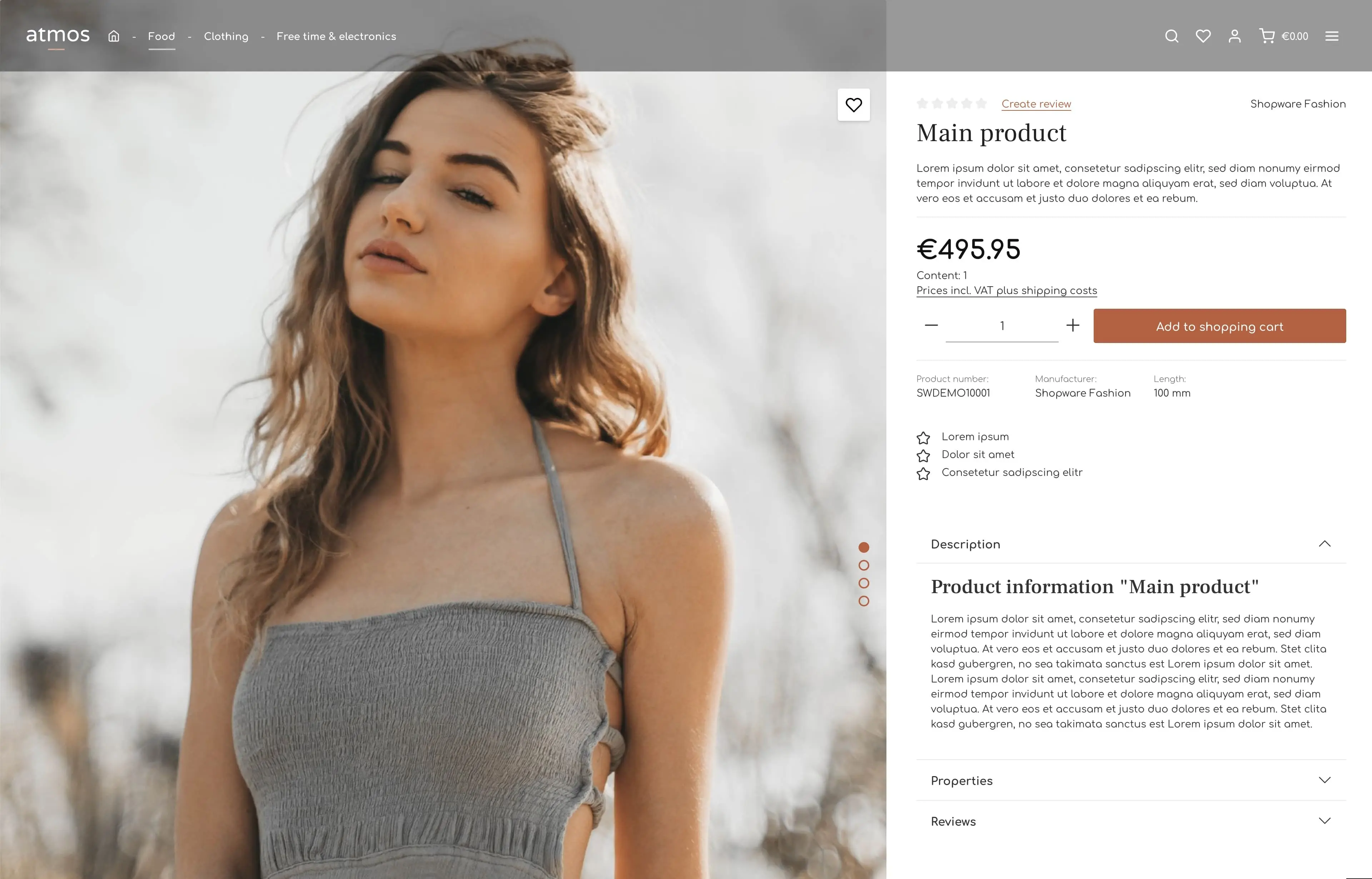
* **Inverted header:** Foreground colors and background colors are swapped. The result depends heavily on the colors set in the header configuration. Depending on the colors you have set, the result varies greatly. Whether the contrast improves with light or dark images / elements of the shopping experiences also depends on your header configuration.
Examples:
Light header - dark text
Dark header - light text
## Global configuration
Using the theme configuration, the settings for displaying the overlay header can also be set globally for all products and partially overridden in the respective product.
The additional fields in the product inherit this setting by default and can also overwrite it again. This also makes it possible to exclude individual categories from these functionalities.
{% hint style="info" %}
If you want to display an overlay header on all but a few categories, then you don't have to repeat these settings in each product.
{% endhint %}
### Overlay header

* **Header overlay (1)** \[ Inherit | Yes | No ]
* **Header background opacity (2)** \[ Percentage value ]
* **Main navigation background opacity (3)** \[ Percentage value ]
* **Backdrop blur radius(4)** \[ Pixel values ] – Indicates how much elements behind the header are blurred.
### Header contrast
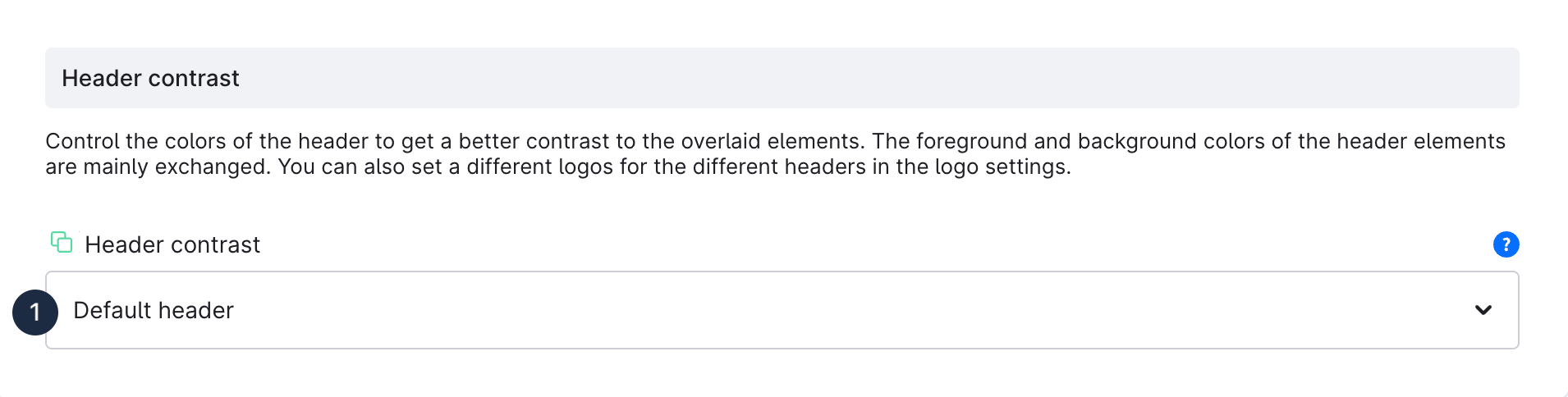
**Header contrast (1)** If the header is set in such a way that it overlays the elements of the shopping experience, contrast problems may arise due to the selected foreground color of the elements of the header. Therefore, choose a contrast header type:
* **Default header:** The header remains colored as defined in the theme configuration.
* **Light header - dark text:** The foreground colors become dark. Improves the contrast when bright images / elements of the shopping experiences are to be overlaid.
* **Dark header - light Text:** The foreground colors become bright. Improves the contrast when dark images / elements of the shopping experiences are to be overlaid.
* **Inverted header:** Foreground colors and background colors are swapped. The result depends heavily on the colors set in the header configuration. Depending on the colors you have set, the result varies greatly. Whether the contrast improves with light or dark images / elements of the shopping experiences also depends on your header configuration.
Examples: